How to Backup Manually
The following instructions will detail how to manually backup or migrate an Emby Server installation.
Important
It is important that the Emby Server process is not running when files are backed up.
Locate Emby's program data folder
The path to the Emby Server Data Folder can be found in your Emby Server Dashboard by clicking the 3-dot menu next to the server name.
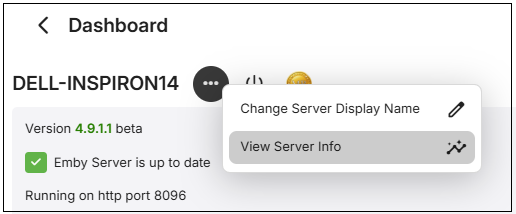
Click the view server info menu choice
The following shows different examples for a number of platforms
Windows
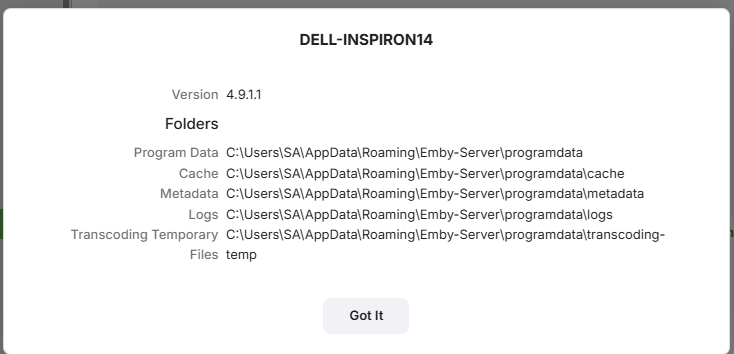
Synology NAS
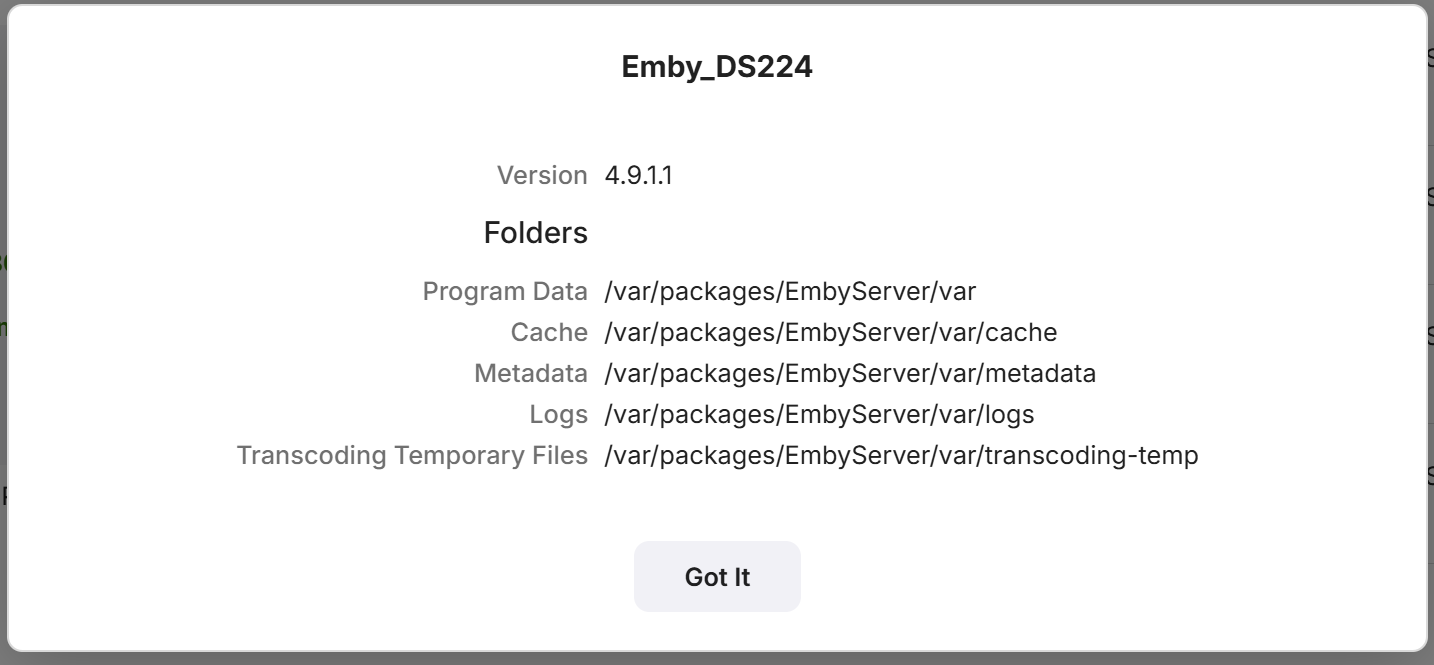
Linux
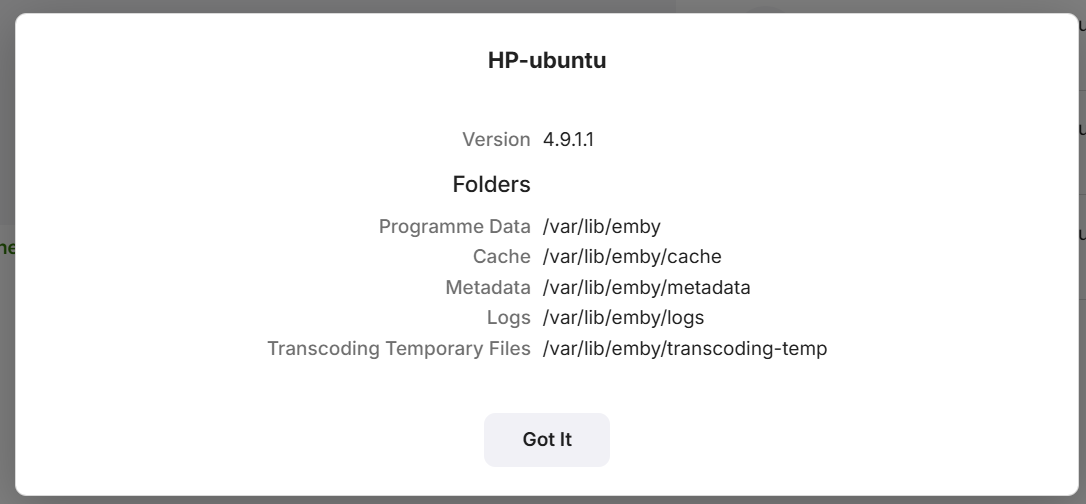
Western Digital NAS
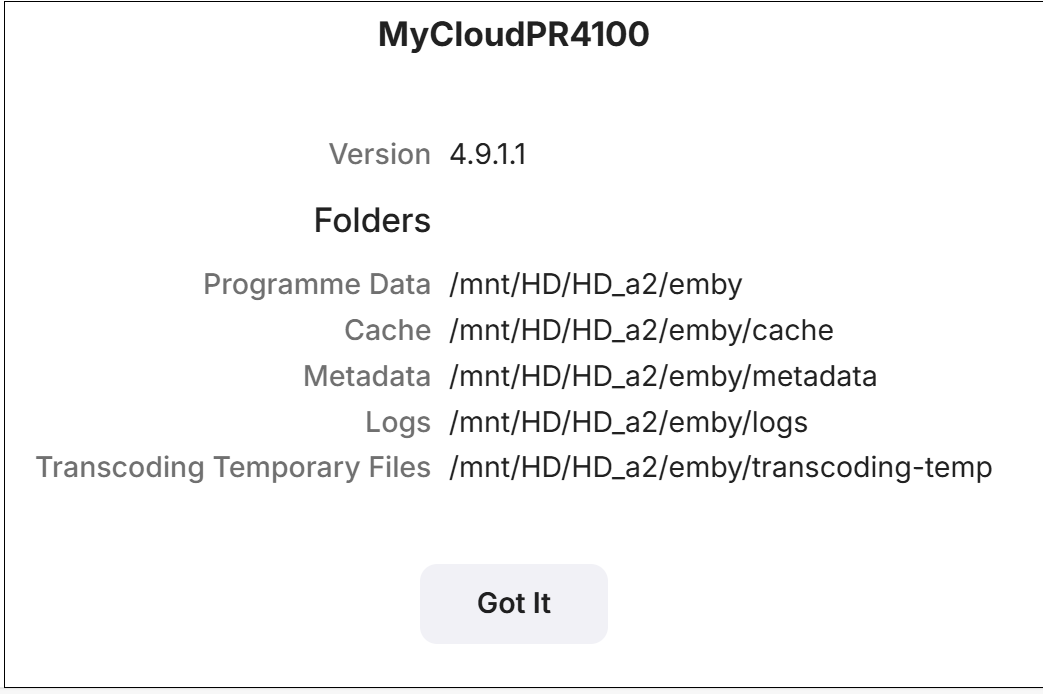
The top path entry shows the parent location for Emby Server app data. This path is referred to the ProgramData.
Simply backup everything in and below ProgramData using any tool you wish or copy all files to a backup location. Make sure Emby Server is shutdown and does not show as running in the processes list, activity monitor on Mac, Task Manager on windows. For NAS devices, use the NAS dashboard to stop the Emby Server process.
Migrate to a new server
If you are migrating to a different operating system, make sure you match up directories properly during the restore as the directory names and locations could be different.
- Get a good backup as explained above from you existing system (old).
- Install the same or a later version number of Emby Server to the computer about to become your (new) system. Note that pre version 4.8 backups would not be compatible with 4.8 and later.
- After running through the setup wizard, shut down Emby Server
- If space allows, make a copy of the installation to another location on disk. This is only needed if you need to check/fix access rights.
- Restore the backup from your old machine right over the current installation on the new system.
- Compare each folder's access rights on the new machine restore to the fresh installation copy.
- Adjust access rights as needed so they match
- Start Emby Server.
- Make any adjustments to file location you may need to make.
- Run a full library scan on all libraries.
- Review log files for any errors generated.
After the Scan
If your library was configured with identical paths as the old setup then user data will generally be preserved as well as user library permissions. You may still want to review the library access for each user to ensure their channel and folder access is restricted as desired.